RoboPet Life > Guide > Pre-purchase Concerns
 Checked with official info on 5 models
What Smartphone and Wi-Fi Setup Do Companion Robots Need for Initial Setup? Checked with Official Info on 5 Models [2026 Edition]
"It arrived, but it didn't work with my smartphone or Wi-Fi" — that's the failure you most want to avoid before buying. All 5 models use a dedicated smartphone app for initial setup. We organized supported OS, Wi-Fi requirements, Bluetooth, and whether an account is needed, using each company's official information.

Shop links: the buttons in this article link to online stores in your region. When an affiliate program applies, RoboPet Life may earn a commission from qualifying purchases at no extra cost to you. Marketplaces also list items from sellers other than the official maker, so please check the seller and warranty before you buy.
What you'll learn in this article
- The smartphone, app, and OS requirements for initial setup
- Wi-Fi frequency and encryption caveats
- Bluetooth and an account: are they required?
- What happens when Wi-Fi it drops
- Before buying: 7-item checklist
According to official guidance, all 5 models we checked use a dedicated smartphone app for initial setup. Requirements for supported OS, Wi-Fi, Bluetooth, and accounts differ by model, so it's reassuring to check before buying whether your smartphone and home Wi-Fi meet them.
Wi-Fi in particular matters: some models can't converse without a connection, and you also need to watch the frequency. For differences in batteries and charging, see battery and charging comparison; for camera and microphone handling, see privacy checkpoints.
What You Need for Initial Setup: "Smartphone, App, Wi-Fi"
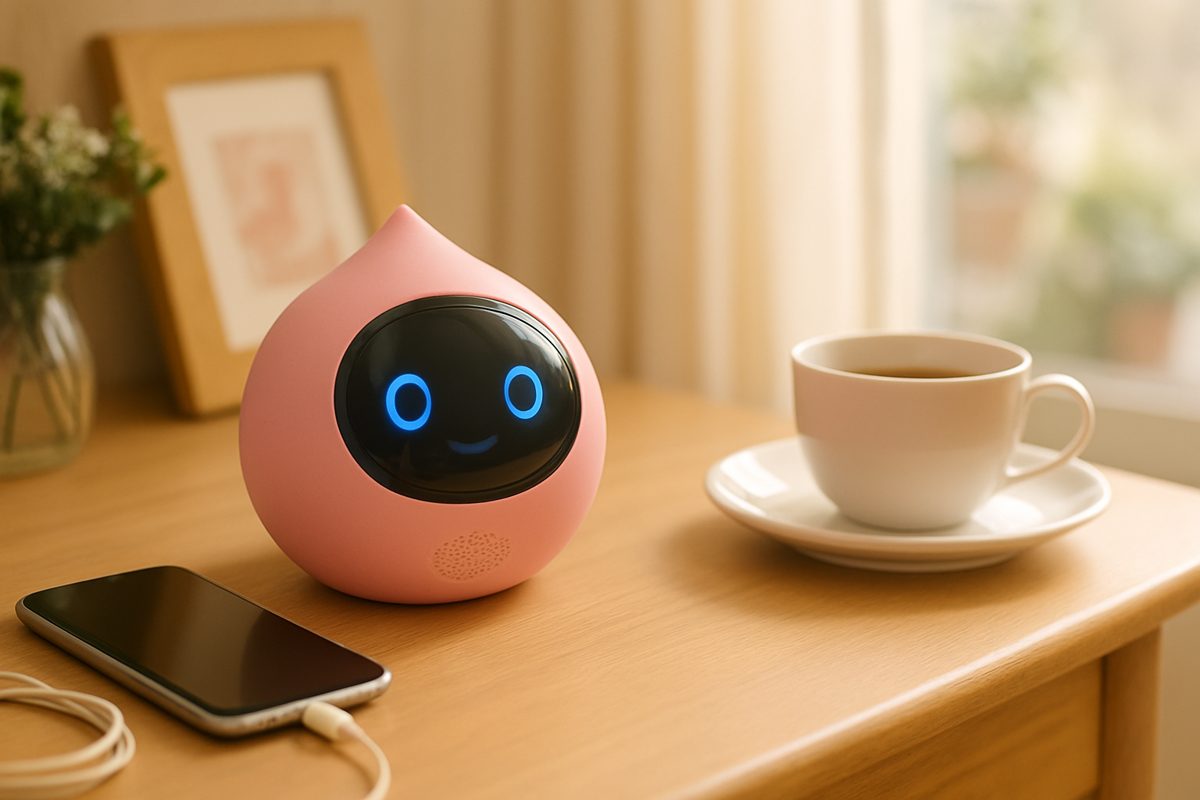
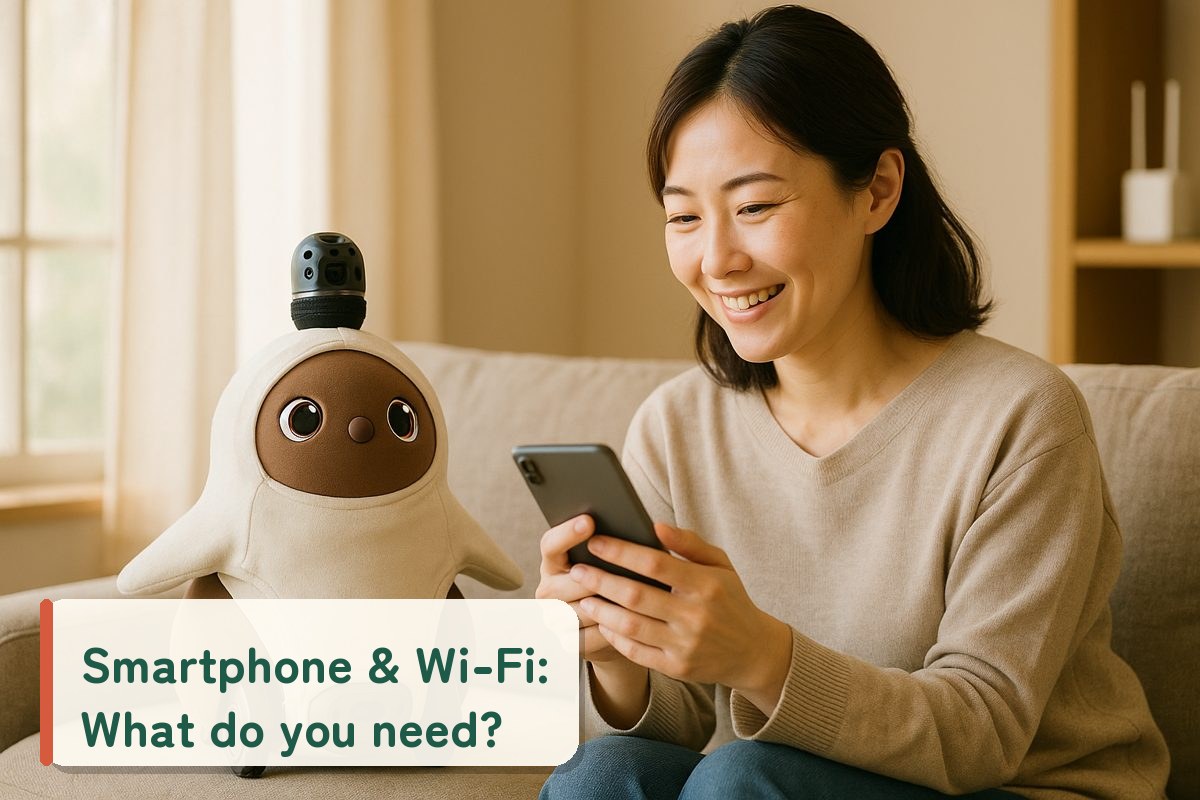
In the official procedures, the common flow is to install the dedicated app on your smartphone, connect it to the robot, and enter your Wi-Fi information.
LOVOT 3.0 is set up with the "LOVOT app," Moflin with "MofLife" (free), KATA Friends with the "SwitchBot app," and Poketomo with the "Poketomo" app. Romi is also set up by getting the app from a QR code.
LOVOT 3.0, Romi, and Poketomo assume a Wi-Fi connection. KATA Friends is also set up by connecting to 2.4GHz Wi-Fi. For Moflin, we could not confirm any mention of Wi-Fi in the official FAQ.
Romi requires new owner registration by email and entering a 6-digit verification code. Poketomo requires a COCORO MEMBERS ID and a COCORO PLAN subscription.
EditorsSmartphone and Wi-Fi Requirements for 5 Models [Official Information]
We compiled what each company's official site and instruction manuals state. "—" marks items we could not confirm in official materials.
| Model | Smartphone / app | Supported OS | Wi-Fi | Bluetooth | Account |
|---|---|---|---|---|---|
 LOVOT 3.0 LOVOT 3.0 | LOVOT app (initial setup via dedicated app) | iOS/iPadOS 14.0 or later, Android 8.0 or later | Required (connect within 30 days of waking up) | Bluetooth connection with smartphone during initial setup | Log in to the app |
 Moflin Moflin | MofLife (free) | —Not confirmed in official sources | —Not confirmed in official sources | Required (pairing) | Log in with CASIO ID |
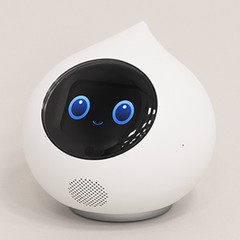 Romi (Lacatan model) Romi (Lacatan model) | Dedicated app (get it via QR code) | iOS 17 or later, Android 11 or later | Required (wired LAN not supported) | Connect from the app | New owner registration by email |
 KATA Friends KATA Friends | SwitchBot app | —Not confirmed in official sources | Guided to connect to 2.4GHz | —Not confirmed in official sources | —Not confirmed in official sources |
 Poketomo Poketomo | Poketomo app | Android 12 or later, iOS 18 or later recommended | Required (internet connection for initial setup) | Required (pairing) | COCORO MEMBERS ID |
← Scroll the table sideways →
* Compiled by the editorial team from content checked on each manufacturer's official site on Oct 15, 2026. Items that could not be confirmed in official sources are not listed. OS requirements may be updated, so please check each company's site for the latest information.
Where to buy the main models
Editors3 Things to Check About Your Wi-Fi

Romi supports the 2.4GHz band, and only the Lacatan model supports the 5GHz band (standard: IEEE 802.11 b/g/n). KATA Friends is guided to connect to 2.4GHz even if the router supports both.
LOVOT's access point supports only WPA/WPA2, not WEP; Romi supports WPA/WPA2/WEP but not WPA3. Check your router settings before buying.
Romi requires DHCP (automatic IP address assignment), does not support static IPs, and recommends speeds of 20Mbps or more for both upload and download. Wired LAN is not supported.
EditorsWhat If You Have No Wi-Fi or Smartphone, or the Connection Drops?

According to official information, behavior when the connection drops differs greatly by model.
If you have no Wi-Fi at home, you can connect via your smartphone's hotspot and add it to the app. After that, basic interaction still works even if the internet drops. However, "Earth Language" mode, the helper feature, the diary, and firmware updates require an internet connection.
A Wi-Fi connection within 30 days of waking up is required to verify contract information, back up, and update software. After the deadline, contract information can't be verified and it stops working, but it works again once you connect and restart.
Romi cannot use conversation or features if it can't connect to Wi-Fi. Poketomo also doesn't respond without Wi-Fi; if you press the button and the light is purple, it is not connected.
EditorsInitial Setup Flow and Estimated Time
We laid out the official procedures for 2 models in order. The number of steps and prerequisites differ by model.
Romi (Lacatan model): about 10 minutes if smooth
First, charge the device.
Download the app from the QR code, then register as an owner by email (enter a 6-digit verification code) or log in.
Connect via Bluetooth from the app, select your Wi-Fi SSID, and enter the password.
Register owner information, register payment for the monthly fee, and switch to "Chat Mode" to finish.
Poketomo: no time estimate given
Using its features requires a COCORO PLAN subscription.
Agree to the terms of use, log in with COCORO MEMBERS, and register a name.
When powered on, it enters Bluetooth pairing mode; use the app to pair and set up Wi-Fi.
Finally, register information such as face photos on the device.
Editors7-Item Checklist Before Buying

Open the official site (product page, FAQ, instruction manual) of the model you're interested in, and check off the items you were able to confirm. Unchecked items are what you still need to look into before buying.
Frequently Asked Questions
Do I need a smartphone to set up a companion robot?
Can I use it without Wi-Fi?
Which Wi-Fi frequency, 2.4GHz or 5GHz?
Is Bluetooth also required?
Find Robots by Purpose
Sources (checked Oct 15, 2026)
- LOVOT 3.0: App operating environment / About wireless features / Checking and reconnecting internet / About initial setup
- Moflin: MofLife pairing FAQ / About the MofLife app
- Romi: Network environment FAQ / Can't connect to Wi-Fi FAQ / App OS FAQ / Initial setup time FAQ / Initial setup manual
- KATA Friends: FAQ / Can it be used without Wi-Fi? / If you can't connect to Wi-Fi
- Poketomo: Instruction manual / Support
Content is compiled by the editorial team from manufacturers' public information and has not been verified with actual devices. Features and services may change. Photos in this article are for illustration only.